Aging and Warranty Report for Live Sites

For an overview of all available Live Site Reports, go here: Overview of All Reports for SiteOwl Live
Access the Aging and Warranty Report from the Reports button in the Live Planning dashboard:
The 7-tab report will be downloaded to your selected directory in CSV format.
Report Tabs:
- Age by Part Number: The count of Devices based on Part Number and the number of years since Install Date
- Age by Location: The count of Devices based on Part Number, Plan, and the number of years since Install Date
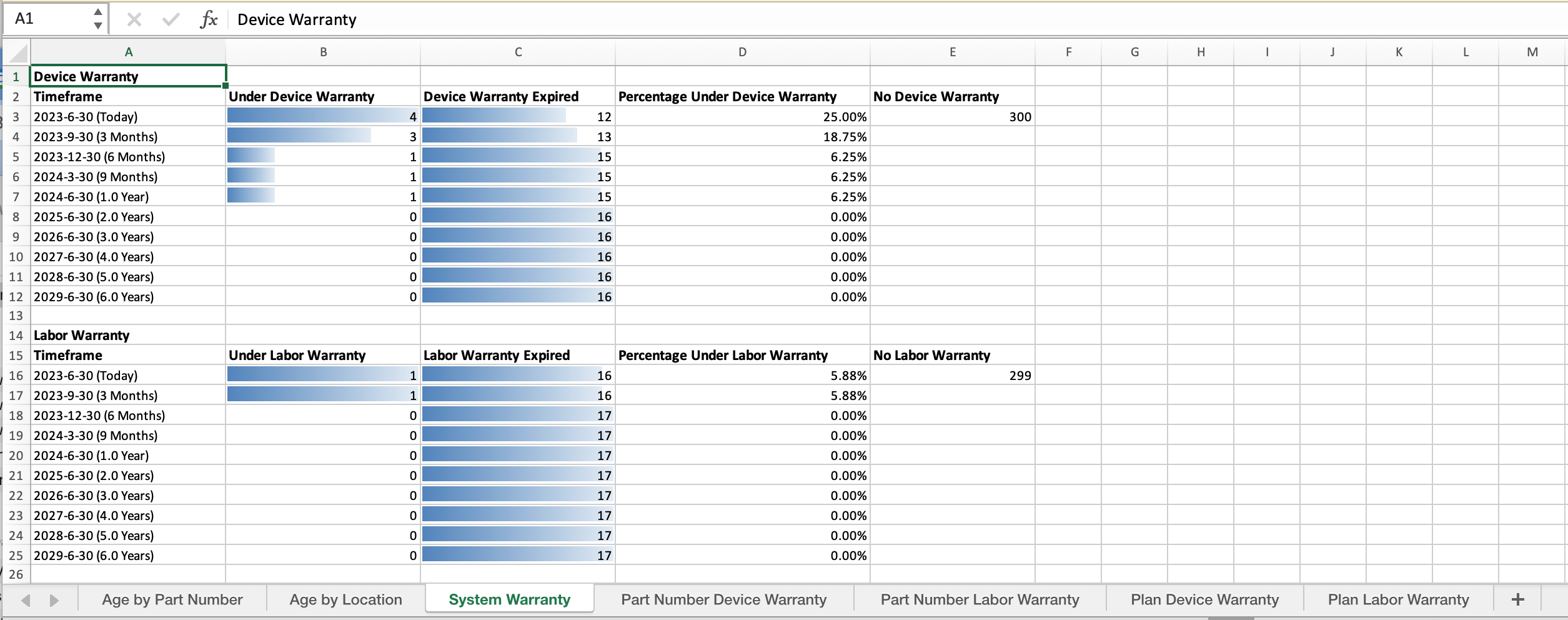
- System Warranty: The count/percentage of Devices that are under Labor and Device Warranty on the current date and at future dates
- Part Number Device Warranty: The total of Devices, per Part Number, that are currently under Device Warranty across all Live Sites
- Part Number Labor Warranty: The total of Devices, per Part Number, that are currently under Labor Warranty across all Live Sites
- Plan Device Warranty: The total of Devices that are currently under Device Warranty per Plan and Part Number
- Plan Labor Warranty: The total of Devices that are currently under Labor Warranty per Plan and Part Number
Click the image to view a full report sample:
Related Articles
Overview of All Reports for SiteOwl Live
When you license SiteOwl Live, you have access to a number of downloadable reports that greatly enhance your ability to assess the status of Live Site Devices. Reports are accessible from the Live Site Card, the Live Site Plan view, or the Live ...Inventory Report for Live Sites
For an overview of all available Live Site Reports, go to: Overview of All Reports for SiteOwl Live Access the Inventory Report from the Reports button in the Live Planning dashboard: This 3-tab report will be downloaded to your selected directory in ...Icon Plan Report for Live Sites
For an overview of all available Live Site Reports, go to: Overview of All Reports for Live Sites Access the Icon Plan Report from the Download options in the Live Site Plan view, then select the Icon Plan Report Configure option: General ...Connections Report for Live Sites
For an overview of all available Live Site Reports, go to: Overview of All Reports for SiteOwl Live Access the Connections Report from the Reports link in the Live Site Card: Click the image to view a full report sample:Multi-Plan Report for Live Sites
For an overview of all available Live Site Reports, go to: Overview of All Reports for SiteOwl Live Access the Multi-Plan Report from the Reports from two locations in SiteOwl: The Reports link in the Live Site Card: The Download icon in the Live ...