Adding Live Site Devices Using Import
The typical method of adding Devices to a Live Site Plan is to drag and drop each item onto the Plan and update its details. This approach can be fast and easy, especially when using Favorites for consistent and accurate results. However, there may be scenarios in which you want to add Devices based on data from another system, for example. In such cases, you can use SiteOwl’s Import capability to add multiple new items to a Plan using a Comma Separated Values (CSV) file that you've created. This article provides the steps to import Devices to a Live Site, including Secondaries, using a CSV file.

Step 2: Update the CSV Template with Data to Import
Open the CSV file in Excel and examine the row(s) below the header row. These rows contain any Devices that were already on the Plan. These can remain in the file since the import process will only update these existing Devices, not add new ones.

Required Columns
The following columns must be included when importing Live Devices. A complete list of columns can be found here. Plan ID: Plan IDs are displayed at the top right of the plan view when viewing a Live Site plan
Device ID: The value you enter here will depend upon whether you intend to also import
Secondary Devices for this Device:
Primary Device:
For each Device that will not include Secondaries, enter a value of New.
For each Device that will include Secondaries, enter a unique value containing at least one letter (ex. New 1, New 2, Cam 1, Cam 2).
Secondary Device
For each Secondary Device, enter a value of New.
Primary Device ID: For each new Secondary Device, enter the Device ID of its
Primary Device.
Device Name: Enter a name for this Device.
System Type: Enter the SiteOwl System Type. A complete list can be found here.
Device Type:
Enter the SiteOwl Device Type. A complete can be found here.
You will create one row in the CSV for each Primary Device you want to add to the Plan. Columns can be Required or Optional. Please refer to the rules and allowed values for each column here.
Note: When creating Secondary Devices using import, the Primary Device row must be placed above the row that will create the Secondary Device. After you add data to the columns for each new row, your CSV should now look something like the example below. When imported, this CSV will add four Devices to the Plan.
Step 3: Importing
With all the data added to your CSV, you’re ready to add the new Devices by importing them. At this point, ensure that you have saved your changes in Excel.
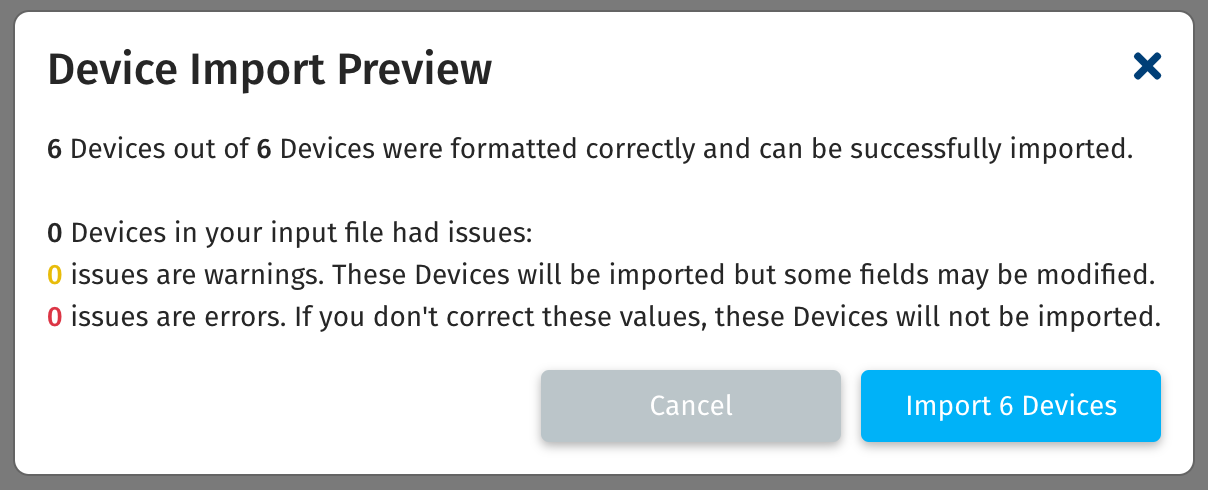
- On the Live Devices screen, click the Import button at the top right. You’ll be prompted to select the CSV you’ve been editing. After you select it, a Device Import Preview will appear similar to the one below. This one states that there are no issues with the data in the CSV and that 6 devices will be imported. Two of these are the existing Devices, and the other four are the new Devices.
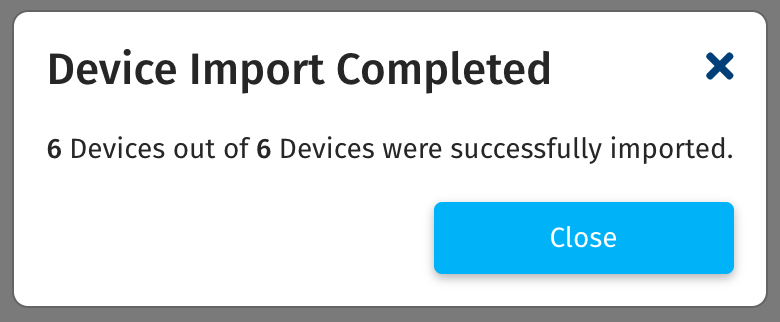
- If you have issues that need to be addressed, click Cancel, edit your CSV and then try to import again. When the import has completed, you’ll receive a message like the one below:
- The Live Devices screen will update automatically to show the new items.And when you view the Plan, you’ll see your new Devices at the top left of the Plan.
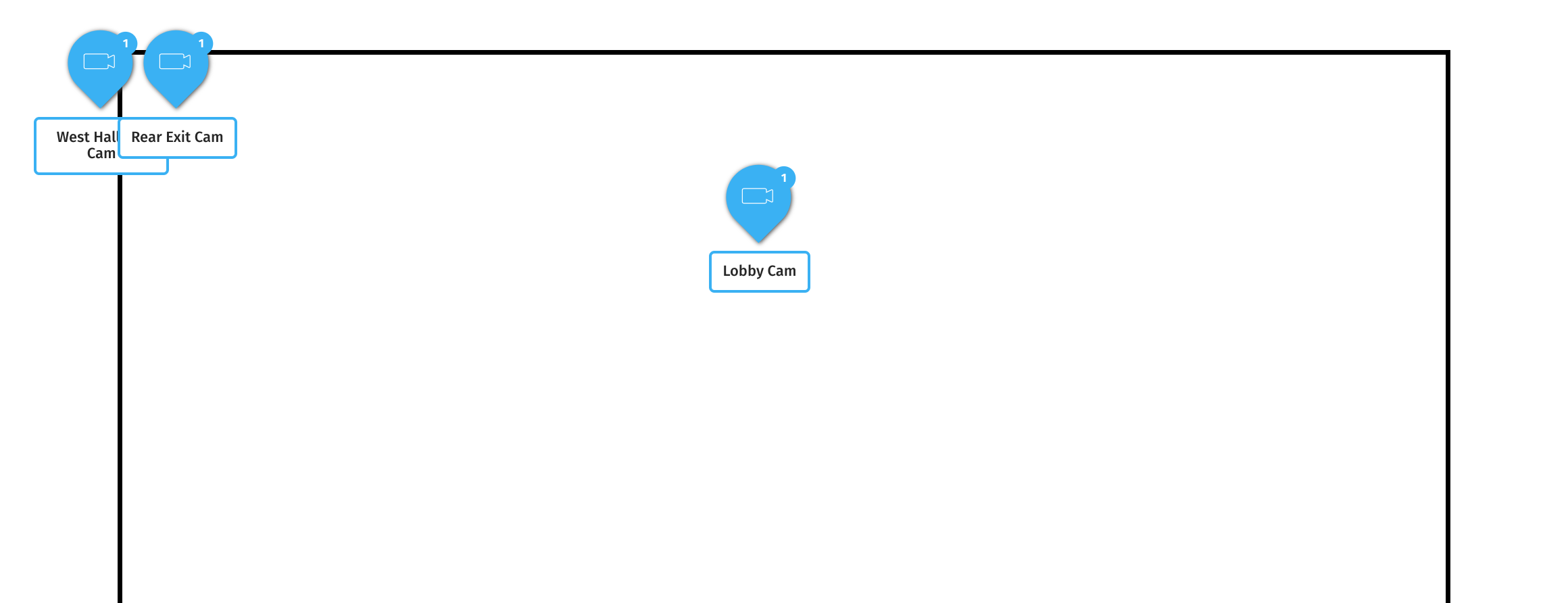
You can now edit the Plan and position the new Devices to their correct locations.
Related Articles
Adding Project Devices/Tasks Using Import
The typical method of adding Devices and Tasks to a Plan is to drag and drop each item to the Plan and update its details. This approach can be fast and easy, especially when using Favorites for consistent and accurate results. However, there may be ...
Adding Favorite Devices/Tasks Using Import
Before following the steps in this article, please complete the SiteOwl Favorites Course. The typical method of creating Favorites is to drag and drop Devices/Tasks to the Plan and then make them Favorites. This approach can be effective when adding ...
Using Live Site Audits
Overview When you license SiteOwl Live, you have access to the Audits feature, enabling you to perform regularly scheduled Preventative Maintenance Inspections. Audits are created in the Web Application and are then performed in the field where the ...
Updating Project Devices/Tasks Using Export and Import
Using SiteOwl’s export/import feature is the most efficient way to update large numbers of Project Devices and Tasks. This approach supports the following: Modifying the value of certain fields. While not all fields can be updated using import, the ...
Best Practices: Devices and Tasks
When using SiteOwl, you’ll find that there are various fields available for each Device and Task included in a Project or Live Site. While many of these fields are self-explanatory, we’ve found there are some fields which can be used in different ...
