Modifying Basic Connections to Draw Detailed Cable Pathways
In the SiteOwl Connections Course you learned the benefits of connecting Devices using Hubs. You learned that basic connections are represented on a Project Plan or Live Site Plan as a straight dotted line drawn between Devices, such as a Network Switch to a Camera. Now, in addition to establishing a basic connection between Devices, you can define a more accurate representation of that connection by documenting the actual layout of a cable run. Connections can be modified to show each turn from point to point. This ability to modify a connection allows Designers to specify the exact layout of a cable installation and create "As Builts" that accurately show cable pathways.
Create a Connection or Edit an Existing Connection
Begin by a creating a basic connection between Devices. Or select an existing connected Device on your Plan.

If you're not sure how to begin, take the SiteOwl Connections Course.
Modify a Connection
With your Project Plan or Live Site Plan in Edit mode, select a connected Device. The connection will be displayed as a straight, solid line between Devices. The color of the line matches the color of the connected Device.
To modify the line to create a more accurate pathway, hover your mouse over the line to add a draggable point (white circle with a plus sign). The point can be positioned anywhere along the line. Click and drag the point in any direction to draw the pathway, then drop it into position. The point will change from white to grey. Hover your mouse over the line again to add additional points as needed, up to twenty points, to create angles and manipulate the line to your desired layout.
To remove a single point, simply click it. To quickly remove all points on a pathway and return to a straight line, click the Reset Pathway option in the Connections section of the Device Edit Panel.

SiteOwl can calculate the length of a connection, greatly enhancing your ability to plan and execute your connection layouts. Learn how to implement the Connection Lengths feature here: Using Connection Length
Filter Options
Using the Filter Options you can set your Viewing Preferences to show or hide Connections on the Plan.
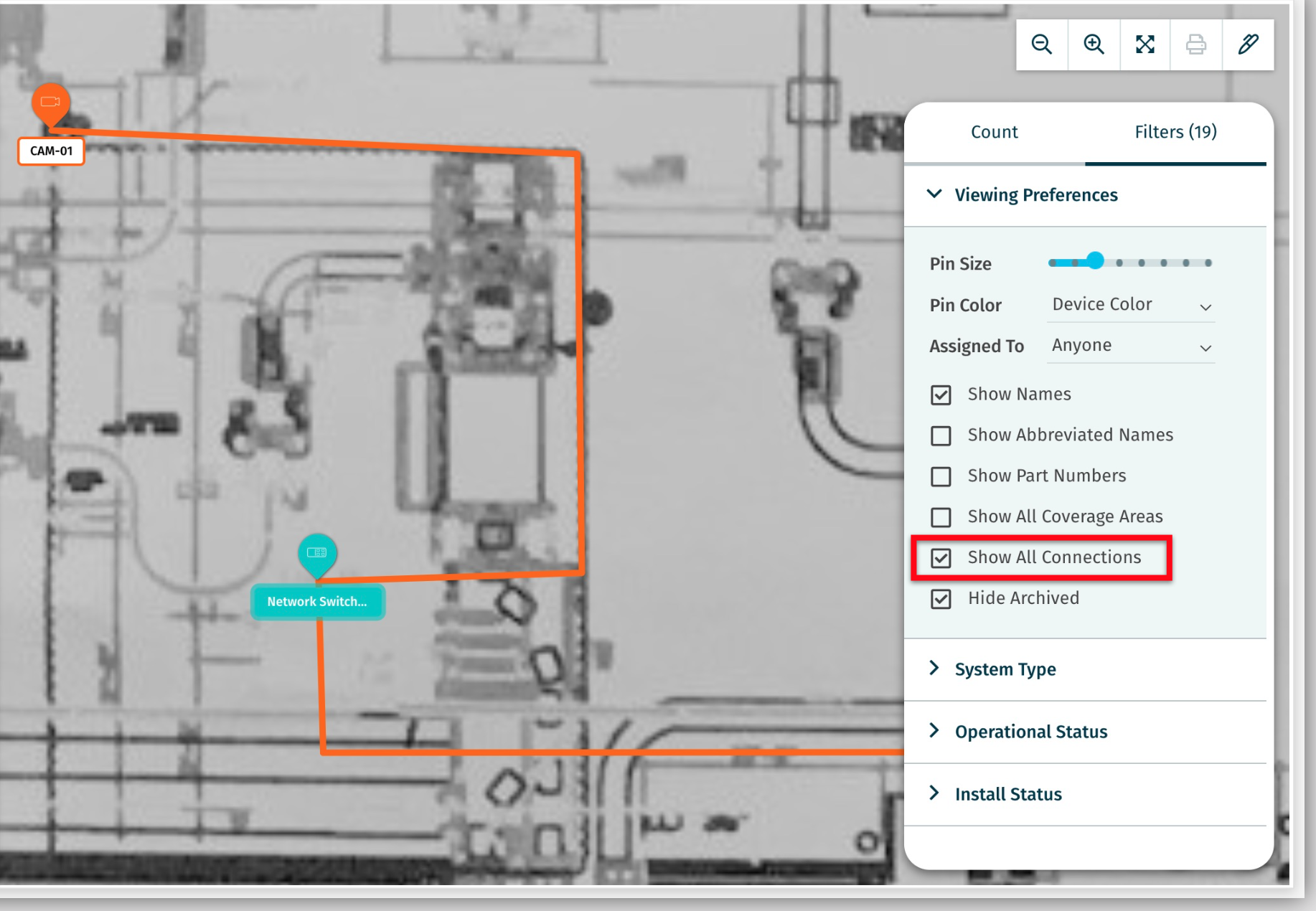
When the Show All Connections option is unchecked, all connection lines will be hidden on the Plan. If a connected Device is selected, only the line to its associated Hub will be shown. If a Hub is selected, the lines to all of its connected Devices will be shown.
To identify all of the Devices connected to a Hub, either check the Show All Connections option in the Filter to display all connection lines on the Plan, or view the selected Hub's Associated section to view a list of all Devices that are connected.
Reports
Basic Connections and Cable Pathways are represented on Plan Printouts and Project Overview Reports when the Show All Connections configuration option is checked.
Mobile App Support
- Cable Pathways and Connection Lines are shown in the DesignOwl and SiteOwl Mobile apps.
Related Articles
Using Connection Length
The Connection Length feature elevates your project planning and execution by providing detailed insights into the length of basic Connections and Cable Pathways. In order to utilize the feature, a few steps must be taken first by an Administrator ...Connections Report for Projects
For an overview of all available Project Reports, go here: Overview of All Reports for SiteOwl Projects Access the Connections Report from the Reports link in the Project Card: Click the image to view a full report sample:Connections Report for Live Sites
For an overview of all available Live Site Reports, go to: Overview of All Reports for SiteOwl Live Access the Connections Report from the Reports link in the Live Site Card: Click the image to view a full report sample:Best Practices: Installation to Service Hand-Off
After Installation is complete, it’s time to transition the project to the Service team. Much like the project hand-off from Sales to Operations, having comprehensive and accurate information is critical to ensuring the receiving team can perform ...Overview of All Reports for SiteOwl Live
When you license SiteOwl Live, you have access to a number of downloadable reports that greatly enhance your ability to assess the status of Live Site Devices. Reports are accessible from the Live Site Card, the Live Site Plan view, or the Live ...