Numbered Plan Report for Projects

For an overview of all available Project Reports, go to: Overview of All Reports for SiteOwl Projects
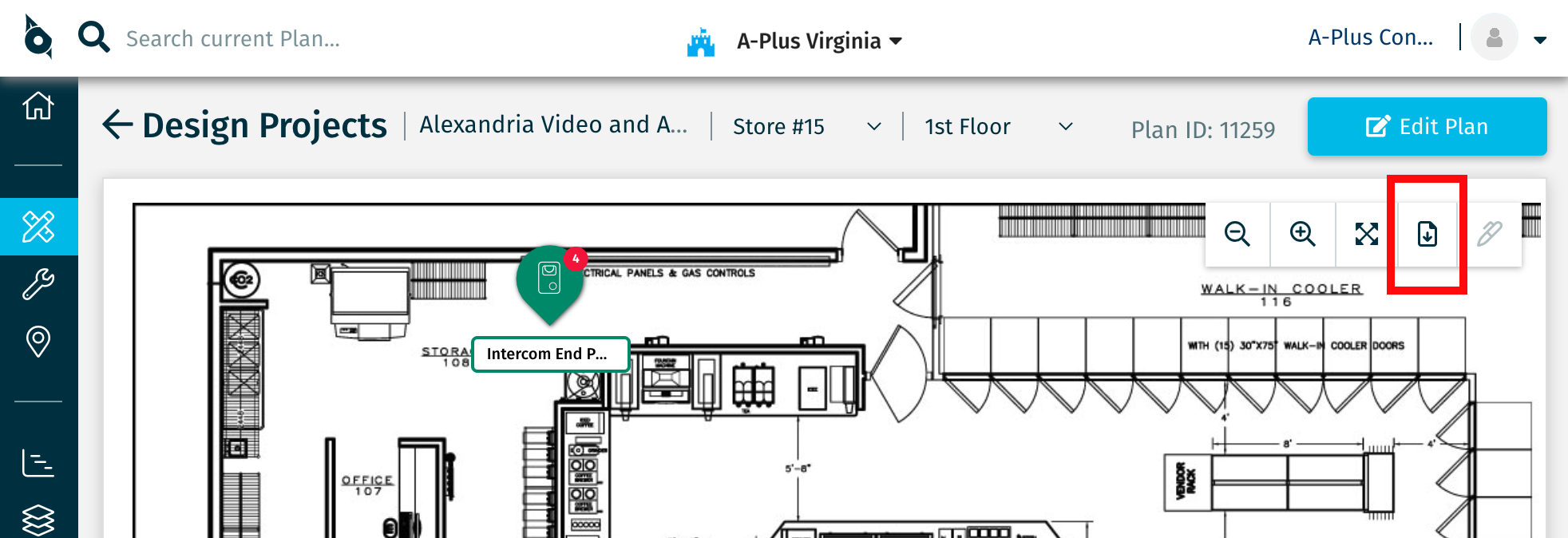
Access the Numbered Plan Report from the Download option in the Project Plan view, then select the Numbered Plan Report Configure option:
General Configuration options allow you to customize the report based on your needs:
- If your Plan contains Devices that are tightly clustered, select the High-Density Plans option for optimal print quality.
- Pin Size can be adjusted for optimal legibility.
- Pin Color can be set to Device Color, Install Status, or Operational Status, enabling you to use this report for different purposes.
- Limit the report to Devices and Tasks that are assigned to a specific User, to Me, are Unassigned, or are assigned to Anyone.
- Include or exclude Coverage Areas, Connections and Secondary Devices.
- Limit the report to selected System Types, Operational Statuses, and Install Statuses. All are included by default.
Column Configuration options allows for up to 8 columns of data to be included in the report. Your column selections will be remembered for the Account on which you're reporting. Click the Default option to return to the system default settings.
Related Articles
Overview of All Reports for SiteOwl Projects
SiteOwl Projects provides a number of downloadable reports that greatly enhance your ability to assess and share Project scope and status at any stage. Reports are accessible from either the Project Card or from the Plan view. This page outlines the ...Numbered Plan Report for Live Sites
For an overview of all available Live Site Reports, go to: Overview of All Reports for SiteOwl Live Access the Numbered Plan Report from the Download option in the Live Site Plan view, then select the Numbered Plan Report Configure option: General ...Multi-Plan Report for Projects
For an overview of all available Project Reports, go to: Overview of All Reports for SiteOwl Projects Access the Multi-Plan Report from the Reports from two locations in SiteOwl: The Reports link in the Project Card: The Download icon in the Project ...Icon Plan Report for Projects
For an overview of all available Project Reports, go to: Overview of All Reports for Projects Access the Icon Plan Report from the Download options in the Project Plan view, then select the Icon Plan Report Configure option: General Configuration ...Progress Report for Installation Projects
For an overview of all available Project Reports, go to: Overview of All Reports for Projects Access the Progress Report from either the Information link or the Progress link in the Project Card: The report is displayed on the Project's Progress tab: ...