Using the Search Bar
The search bar at the top left of your SiteOwl browser window makes it easy to locate a specific Device, Task or Service Ticket in SiteOwl. Search functionality changes contextually based on where you are in the application. Searches can be performed for a specific Project Plan or across the entire system.
Plan Search: Projects and Live Sites
When viewing or editing a Project Plan or Live Site Plan in the SiteOwl web application, you can quickly locate an item using SiteOwl’s powerful Search feature.
Simply begin typing a keyword in the search bar to search for items in the current Plan. A list of matching results will dynamically display as you type.
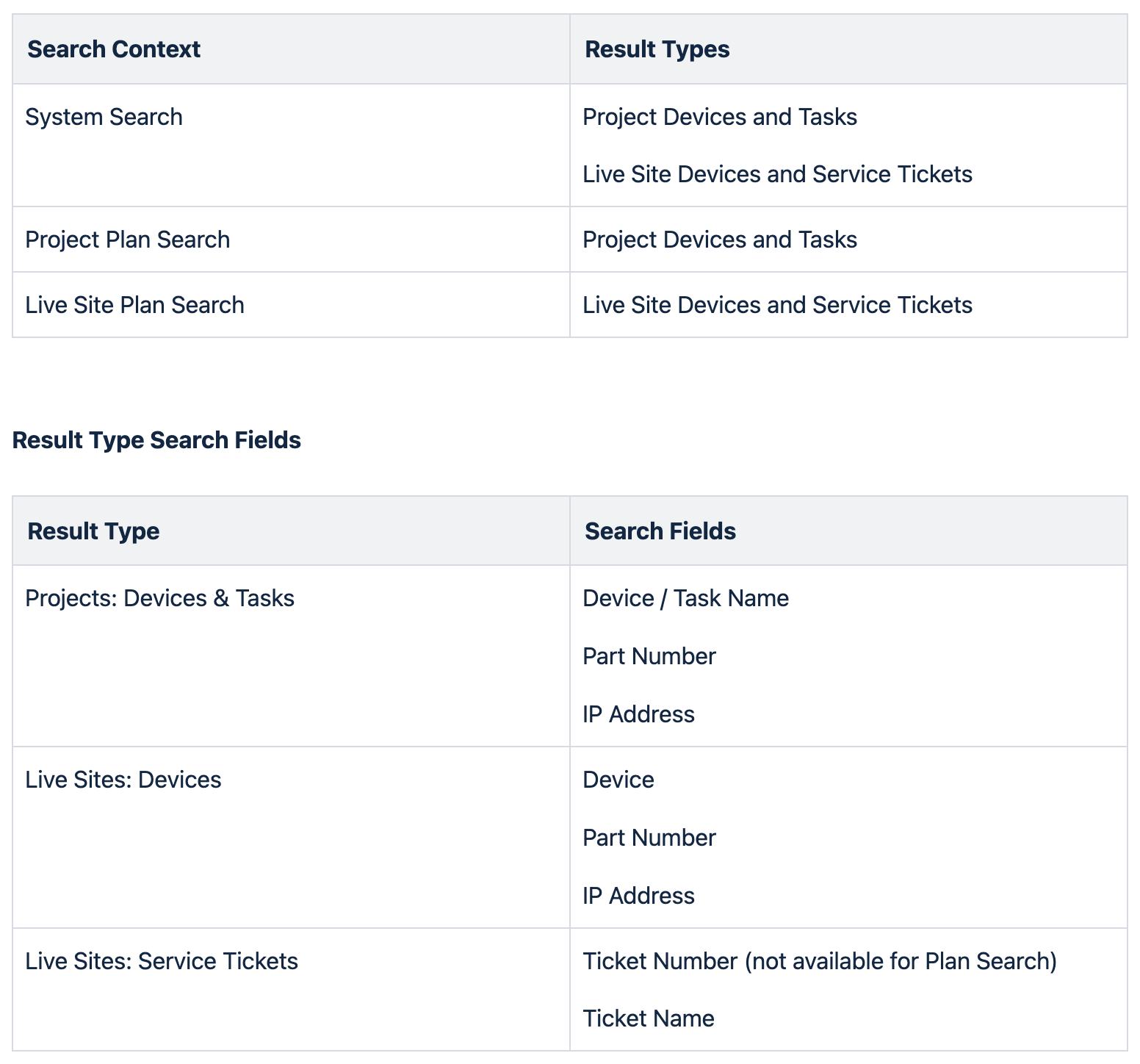
The following attributes can be used in a Project Plan search:
- Device/Task Name
- Part Number
- IP Address
The following attributes can be used in a Live Site Plan search:
- Device Name
- Part Number
- IP Address
- Service Ticket Name.
When you select an item from the list of results, its location on the Plan is highlighted and its details are displayed in the left panel.
System Search
In other areas of SiteOwl, such as Plan Library or Live Sites, you can search an entire Account for a specific item.
The following attributes can be used in a System Search:
- Device Name
- Part Number
- IP Address
- Ticket Name
- Ticket Number
System Search results are grouped by type on 3 tabs. Click each tab to view the results for:
- Project Devices and Tasks
- Live Site Devices
- Service Tickets
Search Criteria
The table below outlines the 3 supported search types, the category of results they will return, and the criteria (fields) you can search by:
Related Articles
Using Connection Length
The Connection Length feature elevates your project planning and execution by providing detailed insights into the length of basic Connections and Cable Pathways. In order to utilize the feature, a few steps must be taken first by an Administrator ...Using Live Site Audits
Overview When you license SiteOwl Live, you have access to the Audits feature, enabling you to perform regularly scheduled Preventative Maintenance Inspections. Audits are created in the Web Application and are then performed in the field where the ...Using Flags in SiteOwl Mobile
Overview When working onsite, you might encounter issues that delay your progress or block your ability to complete your work. When this occurs, you'll likely want to update your Project Manager as soon as possible by sending an email or making a ...Adding Project Devices/Tasks Using Import
The typical method of adding Devices and Tasks to a Plan is to drag and drop each item to the Plan and update its details. This approach can be fast and easy, especially when using Favorites for consistent and accurate results. However, there may be ...Adding Live Site Devices Using Import
The typical method of adding Devices to a Live Site Plan is to drag and drop each item onto the Plan and update its details. This approach can be fast and easy, especially when using Favorites for consistent and accurate results. However, there may ...